Getting the most out of link mode
A step-by-step guide to receiving your replies as rich, offline views instead of plain text.
Normally a command like wind or aqi comes back as text.
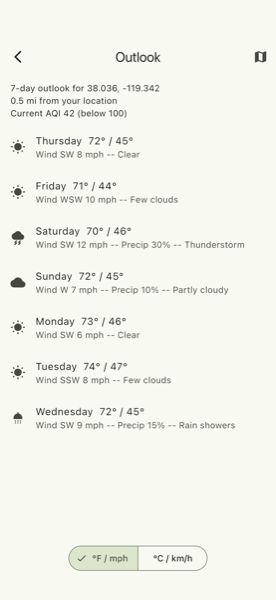
Link mode instead sends you a single tappable link that opens in the Aware Outdoors
app as an easy to understand chart or table. This works offline because all the
data is in the link itself. This guide walks through setting it up and using it,
start to finish.
Link mode is a preview feature. It's real and it works, but you may run into the occasional rough edge while it's still being polished — if anything looks wrong, sending "text mode" with any command switches you straight back to plain text.
Before you start
1. Choose a mode
Each device has three modes:
- Text only (the default) — nothing changes unless you turn this on.
- Text plus a link — you get both, so nothing is lost while you're getting used to it.
- Link only — replies arrive as a link, which can mean fewer satellite messages for the same command.
If this is your first time, start with "text plus a link." You'll still get the reply you're used to, plus a link to try — once you're comfortable, switch to link-only from the field whenever you're ready.
Set it from that device's edit page once you're signed in, or switch anytime from
the device itself by adding one of these words to any command:
"link mode", "text mode", or
"both mode" — for example, an SMS reading
wind both mode or an email to
wind@awareoutdoors.com with both mode. You'll get a
short confirmation message either way, telling you what changed and how to switch
back.
2. Do this once, while you still have signal
Before you head out of coverage: check that you have the latest version of the Aware Outdoors app from the App Store or Google Play — link mode is still being actively improved, so an older version may not open every link correctly. Then send one command with a link in the reply, and tap that link. That first tap teaches your phone to open Aware Outdoors links in the app from now on — after that, links work with no internet at all, since the data travels inside the link itself.
Sometimes the link arrives as plain text instead of something tappable — long links like these aren't always recognized automatically by every messaging app. Either way, copy the whole link and use the app's own "Paste a copied link" button (on the Data tab) to open it. If the link opens in your regular web browser instead of the app, that's a separate sign that the first-tap step hasn't happened on this phone yet — try tapping a link directly next time, which is what teaches your phone to hand these links to the app from then on.
3. Find your replies later: the Data tab
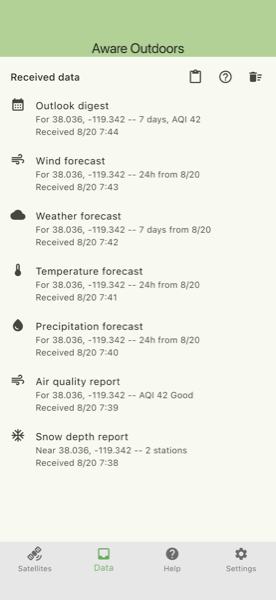
Every rich view you've opened is saved in the app's Data tab, newest first, even the ones you've already looked at. Swipe a row to delete it, or use "Delete all" if you want to clear everything at once. Tap any row to reopen it.
4. If a link can't be built
Occasionally there isn't enough data to build a link from. When that happens in "link only" mode, you still get the ordinary text reply instead — you're never left with nothing.
Switching modes
You're never locked into a mode even when you're off the grid. Add any of these words to any command, or send one on its own, to switch — each confirmation reply reminds you how to switch again:
- text mode — back to plain text
- link mode — a link only
- both mode — text plus a link
Troubleshooting
The link isn't tappable, or it opened in my regular browser instead of the app. Either way, copy the whole link and use the app's "Paste a copied link" button on the Data tab — then see step 2 above so the next one opens in the app directly.
I sent a command and got no reply at all — text or link. That almost always means the "Before you start" step above hasn't been completed yet: an active trial/subscription, and this exact device verified to your account. See Sending Commands for the full command reference.